
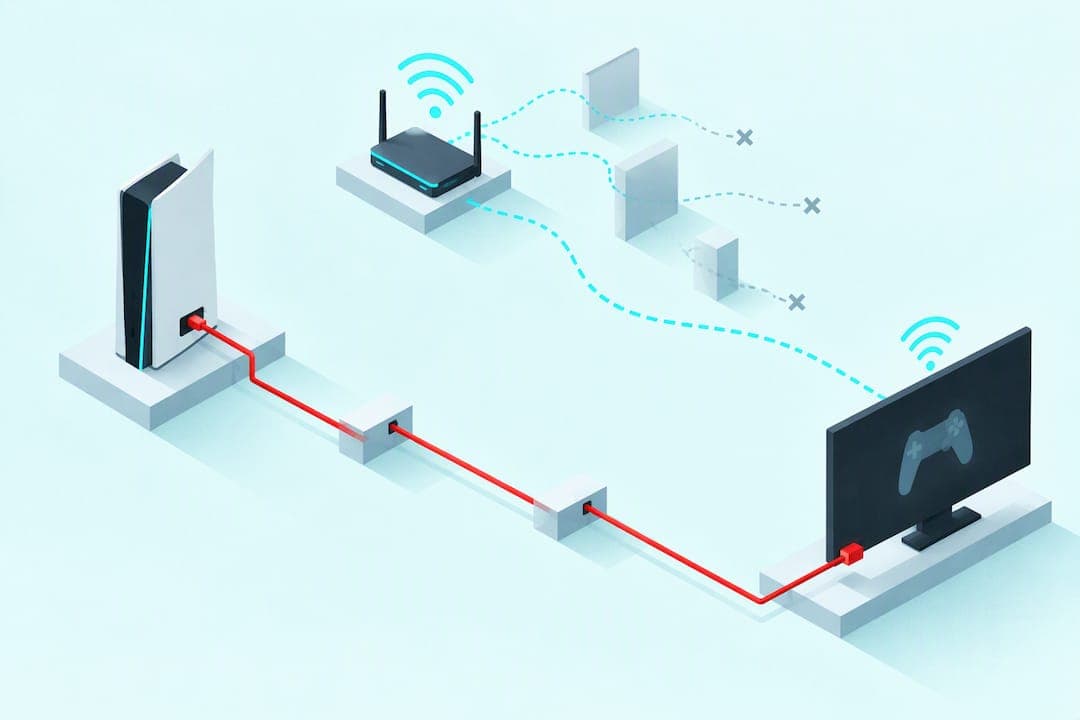
The fastest way to stop Remote Play disconnects is to wire your PS5 to the router and put your client device on 5 GHz with band steering disabled. If drops continue, restart the Remote Play app, update both the PS5 and the app, and run a quick speed test. Most remaining cases trace back to router settings or a weak NAT type, both covered below.
TL;DR:
- Connecting the PS5 via Ethernet and setting the client device to 5 GHz Wi-Fi with band steering off are the most effective ways to prevent disconnects.
- Ensuring UDP port 8572 is open and that your NAT type is not restrictive (preferably NAT Type 2 or better) can resolve persistent session drops.
- Using a wired setup on both ends and confirming bandwidth of at least 5 Mbps up and down helps maintain a stable Remote Play connection.
- Updating the PS5 system software, Remote Play app, and router firmware minimizes software-related disconnections.
- Performing regular speed tests and actual gameplay for 10 to 15 minutes confirms whether fixes are successful before attempting advanced router adjustments.
Table of Contents
- Quick troubleshooting checklist to try right now
- Network and router fixes: wired vs. wireless, ports, and NAT
- Console and app settings that eliminate software-side drops
- Device-side fixes for phones, tablets, and PCs
- How to verify your fix actually worked
- Advanced fixes: port forwarding, NAT changes, and calling your ISP
- What actually fixes Remote Play fastest
- Sources
- FAQ
Quick troubleshooting checklist to try right now
Before touching router settings, run through the fast fixes. Most disconnect issues clear up with one of these:
- Restart your PS5 and your client device (phone, tablet, or PC).
- Sign out of Remote Play, then sign back in on both ends.
- Confirm your PS5 and the Remote Play app are running the latest software versions.
- If you use rest mode, check that rest-mode Remote Play options are turned on.
- Pause downloads or streaming on your network, then run a quick speed test.
- Switch the PS5 to a wired Ethernet connection. If that is not possible, force your client onto 5 GHz Wi-Fi and turn off band steering.
These steps solve a large share of disconnects because they clear out stale sessions, mismatched software versions, and bandwidth competition, three of the most common causes behind a dropped stream.
Network and router fixes: wired vs. wireless, ports, and NAT
Remote Play depends on two separate links: the PS5 connection to your router, and your client device's connection to the same network (or the internet, if you are playing remotely). Either one can break the session, so both need to be solid.
- Connect the PS5 to your router with an Ethernet cable whenever you can.
- Set your client device to connect on the 5 GHz band specifically, not "auto."
- Disable band steering on your router, or create a separate 5 GHz-only network name, since Sony's Remote Play on PS Portal guidance notes that automatic switching between 2.4 GHz and 5 GHz is a frequent cause of drops.
- Check that UDP port 8572 is open on your router, since Sony's connection troubleshooting page lists it as the port Remote Play uses, and add a port-forwarding rule if your router blocks it by default.
- Check your PS5's NAT type. NAT Type 3 is the most restrictive and can prevent Remote Play from connecting at all.
Pro Tip: Fix the PS5's connection first. A rock-solid client device on a shaky PS5 link will still disconnect.
If your router keeps reverting to NAT Type 3 after changes, contact your ISP or router vendor. Some ISP-provided routers restrict port forwarding or UPnP by default.
Console and app settings that eliminate software-side drops
Software mismatches and misconfigured console settings cause a good share of disconnects that have nothing to do with your network. Work through these before assuming it is a router problem:
- Update your PS5 system software and the Remote Play app to their latest versions before trying anything else.
- Confirm Remote Play is enabled in PS5 settings and that the same PlayStation account is signed in on both the console and the client.
- If you use rest mode, turn on "Stay Connected to the Internet" and "Enable Turning On PS5 from Network" so the console stays reachable.
- Run PS5's built-in "Test Internet Connection" tool, found under Settings, Network, Connection Status, which Sony documents in its mobile Remote Play support page as a way to check latency, packet loss, and NAT type in one screen.
- If problems persist after updates, deactivate and reactivate the console under account settings, or reset network settings as a last resort before replacing hardware.
Device-side fixes for phones, tablets, and PCs
The client device matters as much as the PS5 itself. On a PC or Mac, use a wired connection whenever the setup allows it. On mobile or tablet, manually select the 5 GHz network and disable any "smart" Wi-Fi switching feature that lets the device roam between networks.
- Check that antivirus, firewall, or VPN software on the client is not silently blocking Remote Play traffic.
- Confirm the Remote Play app has the permissions it needs, including local network access on mobile operating systems.
- Pause cloud backups, app store updates, and large downloads on the client device during a session, since these compete for the same bandwidth Remote Play needs.
How to verify your fix actually worked
Do not assume a fix worked just because the first few minutes look smooth. Confirm it properly:
- Run a speed test on both the PS5's network and the client device. Remote Play needs roughly 5 Mbps up and down as a baseline, and anything lower will hurt quality or trigger drops.
- Run PS5's "Test Internet Connection" again and note the reported NAT type, packet loss, and latency figures.
- Play for 10 to 15 minutes while deliberately testing common disconnect triggers: walk between rooms, let a phone notification pop up nearby, or run a microwave or Bluetooth device close to the router.
A stable session with low packet loss and a clean NAT type on this test is the clearest sign the fix held, according to Sony's mobile Remote Play guidance on using the built-in connection test as a diagnostic step.
Advanced fixes: port forwarding, NAT changes, and calling your ISP
If the basics do not hold, move to router-level changes:
- Add a manual port-forwarding rule for UDP port 8572, pointing to your PS5's local IP address, per PlayStation's network error guidance.
- Assign your PS5 a static local IP so the forwarding rule does not break after a router restart.
- Enable UPnP if your router supports it, or place the PS5 in a DMZ as a temporary test to confirm NAT type is the culprit.
- Update your router's firmware, since outdated firmware often mishandles UPnP or NAT negotiation.
Pro Tip: If NAT type stays stuck at Type 3 after these changes, that usually points to an ISP-side restriction worth a support call.
Router restarts, firmware updates, or a full factory reset are worth trying before requesting an ISP debug session, since many stuck NAT issues clear up with a fresh router configuration.

What actually fixes Remote Play fastest
Network-first troubleshooting saves the most time. Wiring the PS5 and locking the client to 5 GHz resolves more disconnect cases than any app setting, because it removes the two weakest links before you touch anything else. Run short stress tests after each change, and write down the exact error code or message you see. That detail turns a guessing game into a targeted fix.
— Forge
Sources
These steps draw on Sony's own support documentation, including the PS Portal Remote Play guide, the connection troubleshooting page, and PS5 network error guidance for firmware and router steps.
If your Remote Play troubleshooting is really about keeping a Cronus Zen script setup running smoothly across sessions, some services offer running your scripts in-browser with real-time editing, live compilation, and error checking, so you can adjust and use them from any device without hardware tethering. The Virtual Zen plan is $35 per month, with self-service management and immediate access after signup. Check out ForgeVZ to see if browser-based script control fits your setup.
- PlayStation — PlayStation Remote Play on PS Portal
- Sony — How to check streaming quality and add settings menu in PS remote play?
FAQ
Why does my PS Remote Play keep closing itself?
Remote Play often closes on its own due to weak Wi-Fi on the client device, an outdated app version, or router band steering that switches your connection mid-session. Updating the app and console, then switching to 5 GHz with band steering off, resolves most repeat closures.
Why does my PlayStation remote keep disconnecting?
The most common causes are an unstable PS5-to-router connection, a client device roaming between Wi-Fi bands, or a restrictive NAT type. Wiring the PS5 with Ethernet and forcing the client onto a locked 5 GHz connection fixes the majority of cases.
How do I fix Remote Play on PS5?
Start by updating the PS5 and Remote Play app, then wire the PS5 to your router and set the client device to 5 GHz Wi-Fi with band steering disabled. If disconnects continue, check that UDP port 8572 is open and confirm your NAT type isn't stuck at Type 3.
Why is the PS Remote Play app so bad?
Remote Play's reputation for instability usually comes down to network conditions rather than the app itself, since it needs a steady link on both the PS5 and client side plus roughly 5 Mbps of bandwidth in each direction. Once the network side is stable, most users find the app performs consistently.